
Getting started
In this guide, we will walk you through the process of creating your first schedule using our user-friendly interface.
Creating Your First Schedule
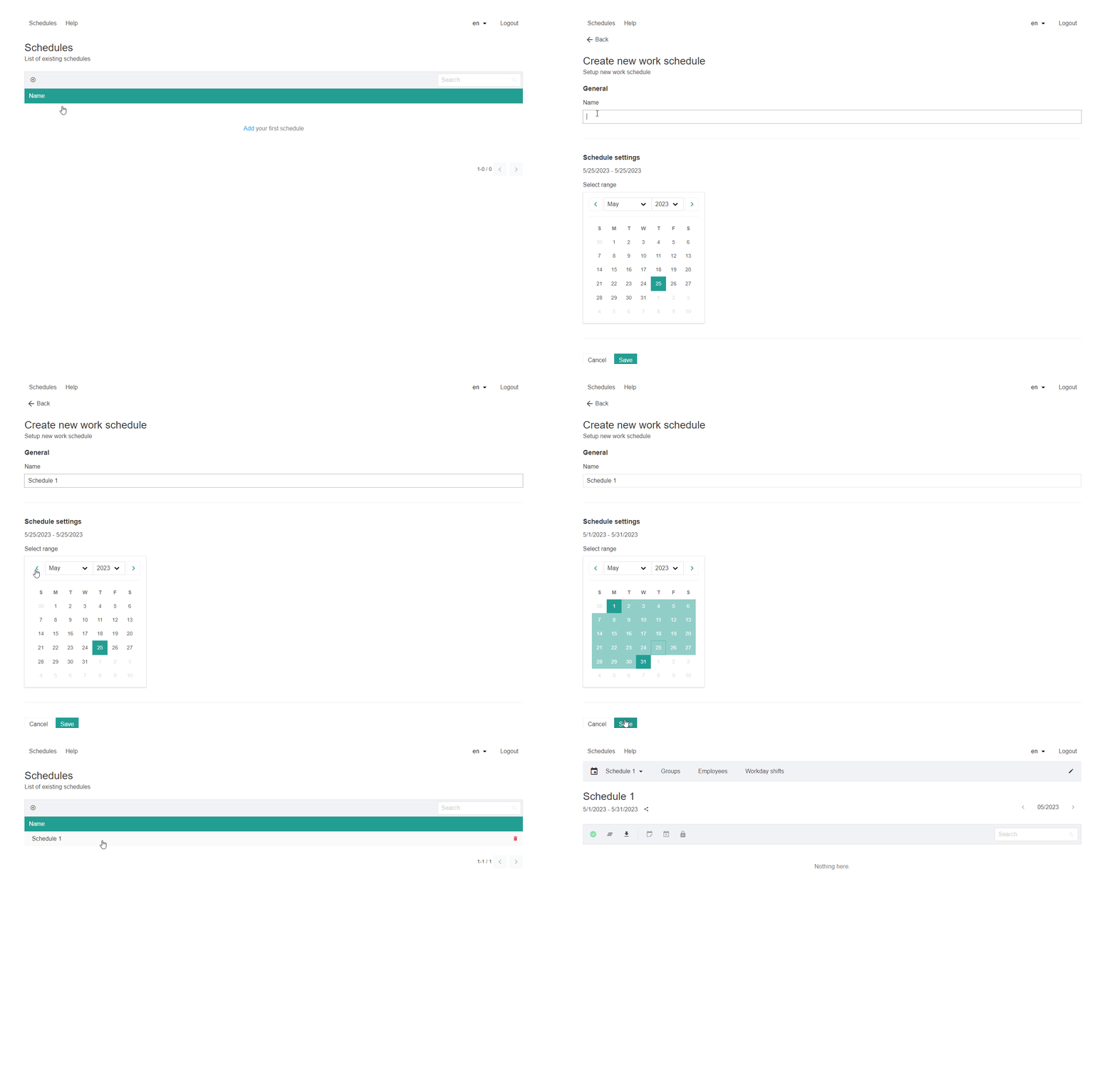
To create your first schedule, follow these simple steps:
- Locate the plus sign or the 'Add' button in the interface.
- Click on the plus sign or 'Add' button to initiate the schedule creation process.
- A form or dialog box will appear where you can fill in all the necessary information for your event or task. Provide details such as the event title, date, start time, end time, location, and any additional notes.
- Ensure you have included all the required information for accurate scheduling.
- Once you have filled in the necessary details, click on the 'Save' button to finalize and save your schedule.
Creating Groups with Constraints and Rules
Note: Creating groups with well-defined constraints and rules is crucial for an organized and efficient schedule. Follow the steps below to set up groups with hard and soft constraints.
Creating Groups:
- Access the "Groups" section or tab in your scheduling platform. Click on the "Create New Group" or similar option. Provide a name or label for the group, such as "Sales Team" or "Morning Shift." Customize any necessary settings specific to the group. Configuring Constraints: Define hard constraints for the group, such as specific working hours or mandatory group assignments.
- Configure soft constraints, which are preferences or recommendations that can be considered during scheduling but may be adjusted if necessary. Save or confirm the creation of the group. Section Title: Adding Employees with Constraints and Rules
Note: Adding employees while considering their constraints and rules ensures a well-balanced schedule. Follow the steps below to add employees with their associated hard and soft constraints.
Adding Employees
Define hard constraints for each employee, such as preferred shifts, maximum working hours, or specific off-days. Set soft constraints based on employee preferences or recommendations. Save or confirm the addition of each employee. Section Title: Setting up Shifts with Constraints and Rules
Note: Properly configuring shifts with constraints and rules ensures a well-optimized schedule. Follow the steps below to set up shifts with their associated hard and soft constraints.
Setting up Shifts
-
Access the "Shifts" tab or area where you manage shifts. Click on "Create New Shift" or a similar option. Specify the shift details, such as start time, end time, and any specific requirements. Assign the shift to the relevant group(s) or employee(s). Configuring Constraints:
-
Define hard constraints for each shift, such as mandatory skills, minimum staffing levels, or preferred employee assignments. Set soft constraints based on shift preferences or recommendations. Save or confirm the creation of each shift.
By following these steps in each section, you can create well-structured groups, employees, and shifts while considering their respective hard and soft constraints. This approach ensures an organized and efficient scheduling process that aligns with the requirements and preferences of your workforce.